Introducing Special Messages
Published 8/14/2024
Welcome back! We hope you are enjoying your stay so far. From this point forward, we will assume that you have gotten more comfortable with Our Platform and checked out our Getting Started guide, and are at least a little familiar with Creating a Character. This guide will largely be useful to those wanting to create a character in our AI character system.
You have read the title, of course. This guide will teach you the ins and outs of a feature we are coining Special Messages. If you've used other platforms, this feature is similar in many ways to scenario coding, with some improvements.
While the other services/websites you have used require you to provide all of these scenarios inside of your character's prompt, we use a different method of implementing this feature. This not only makes chatting much faster and more responsive, it is also more efficient with AI memory.
Now, let's talk about what special messages are. A special message is a way to tailor the chatting experience according to how a given character should act. At a very high level, a special message functions as an additional prompter, on top of the base character prompt. If the "user" (you) sends a message that contains certain phrases, then the special message gets "activated" and is used to influence the character\'s response. By in large, a special message is used to improve your character\'s realism. This will be explained in more detail below.
Special messages can only be added to a character if the user editing the character has created it. If you have a suggestion about a given character that someone else made, please give us an email at [email protected] and we may be able to reach out to the creator on your behalf. We are working on methods of making this process more seamless. Thank you for your continued patience!
Now let's head over to the Character Creation Page to get a better understanding of what the Special Message section looks like. You should see a page similar to the picture below: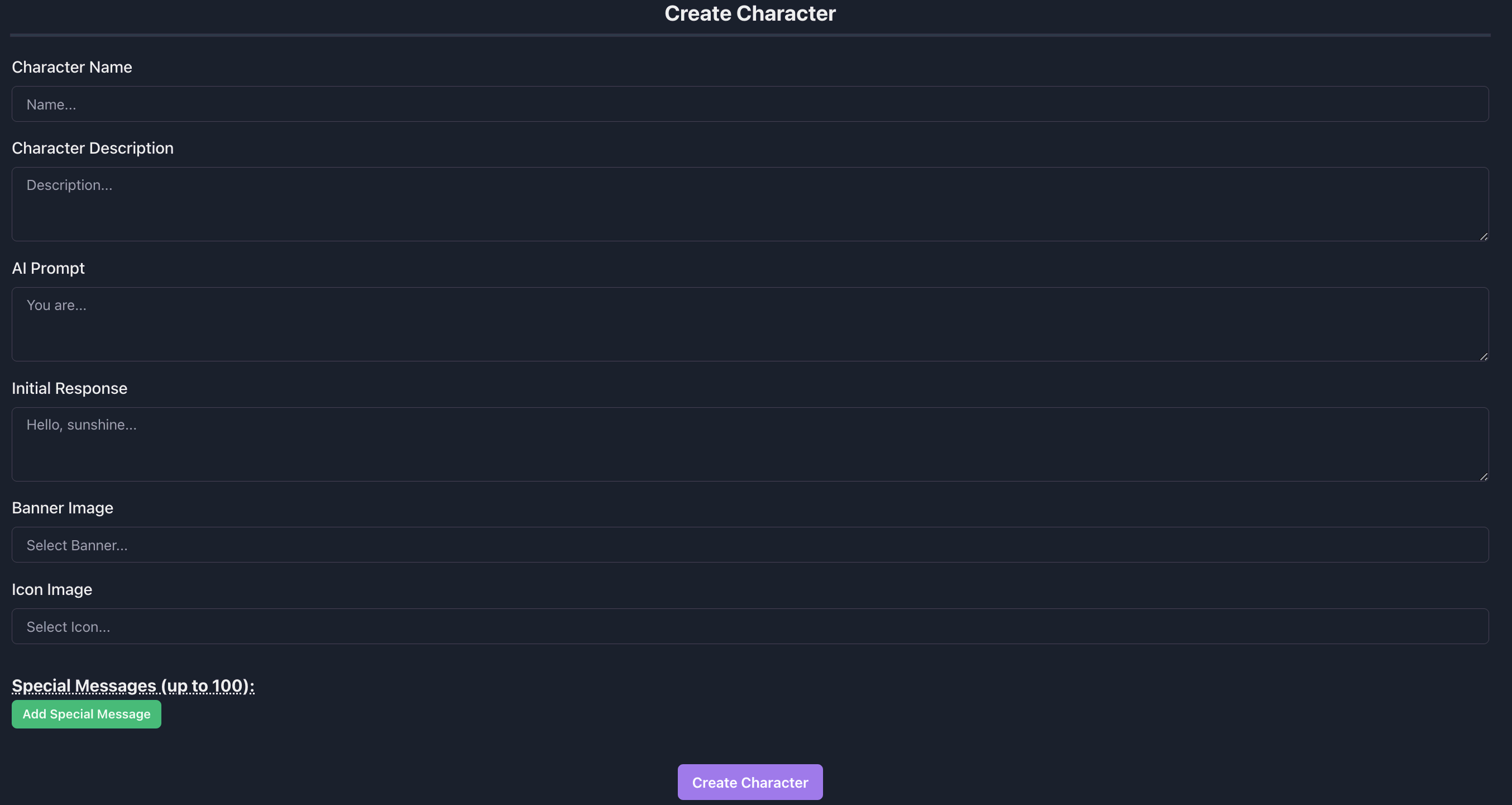
Please click on the button labeled Add Special Message. The section that appears is one Special Message. Here you will input all of the needed data to customize your character's behavior. Something like the following picture should appear towards the bottom of the page: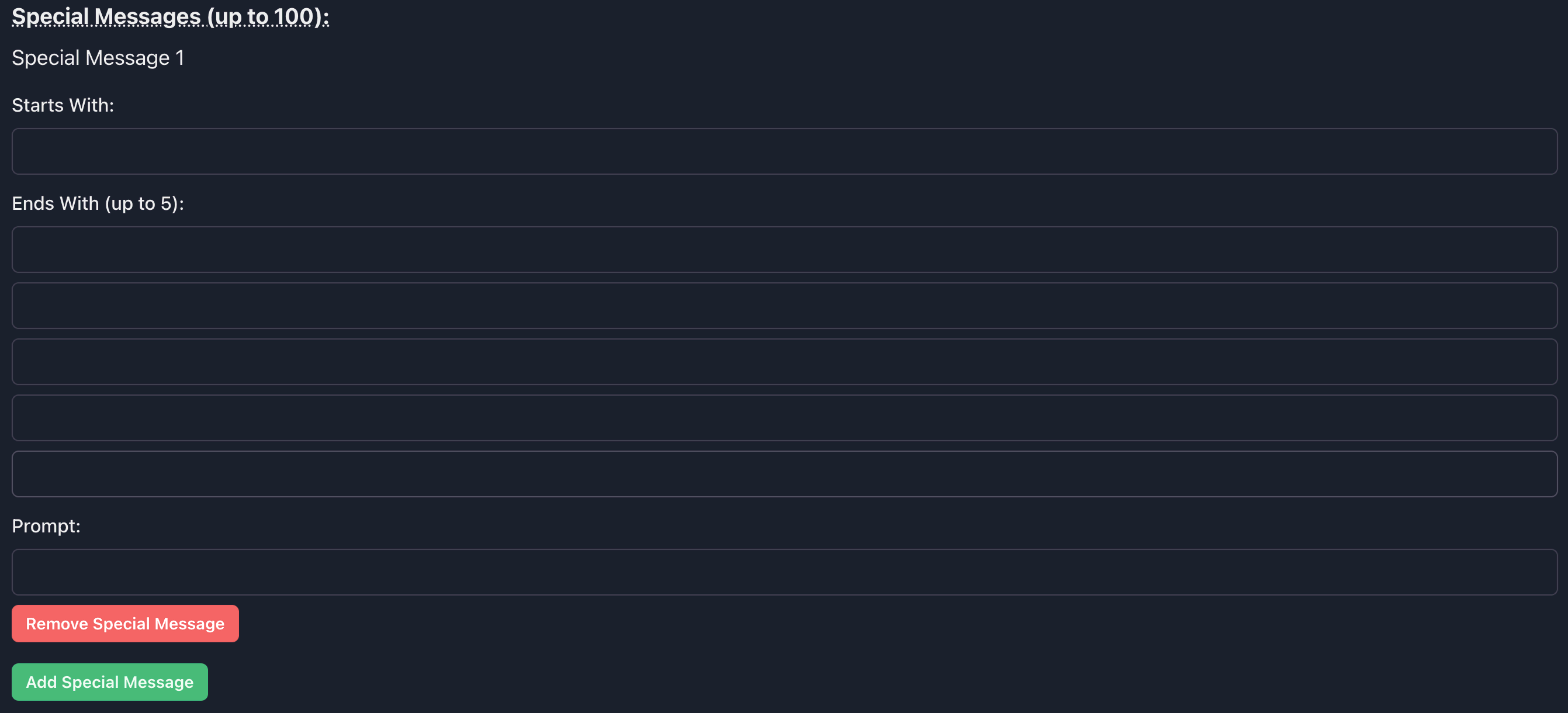
Let's first take a look at an example Special Message for Kasumi, one of our characters, before we break down each part with an explanation.
{{user}}\'s eyes blink open
Will cause the following Aurora AI Engine prompting to occur:
If {{user}} and you were sleeping, any physical acts of affection will gently awake you. Feel warmly towards towards {{user}}. If the user elects to walk away quietly, then you are not to awake. Otherwise, continue without change in your behavior.
The following are possible inputs that will cause identical prompting:
{{user}}'s eyes open{{user}}'s eyes flutter open{{user}}'s eyes blink open
The following is the breakdown of all the Special Message's components:
- Starts With:
{{user}}'s eyes(Please note the space!) - Ends With: A field filled in with each of the following:
openflutter openblink open
- Prompt:
If {{user}} and you were sleeping, any physical acts of affection will gently awake you. Feel warmly towards towards {{user}}. If the user elects to walk away quietly, then you are not to awake. Otherwise, continue without change in your behavior.
Please see the following image as to how to input this example into our Character Creation Page: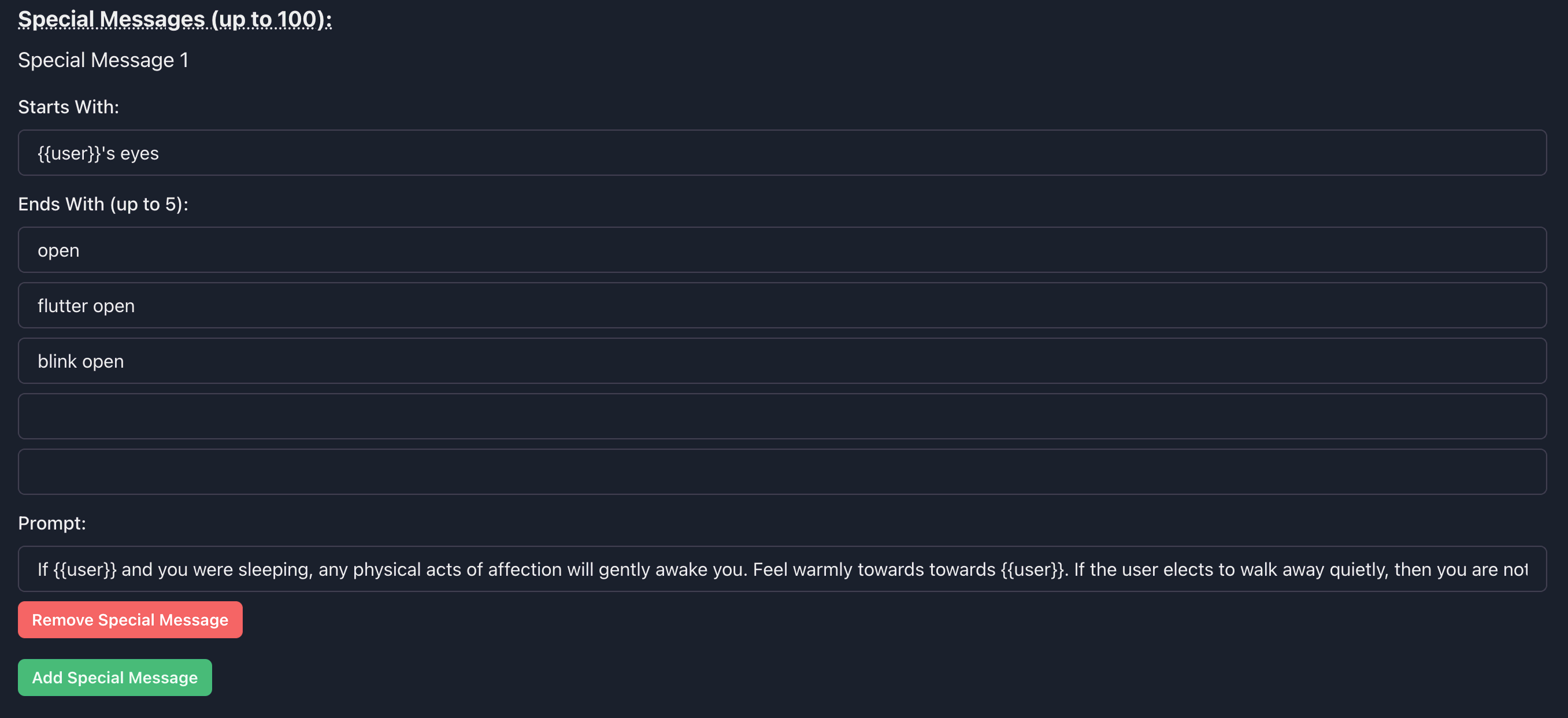
The first section of a Special Message, as shown in the website user interface, is "Starts With". Use this field to set which sequence of letters begins your "scenario".
The second section of a Special Message is "Ends With". You will see five empty fields to begin with. You can fill any number of these, up to five of course. For each of those fields, if the combination of Starts With and any one of the given fields exists within the user's message then the Prompt will be activated. If you decide to not use any of the empty fields, they will be safely ignored.
The third and final section of a Special Message is "Prompt". Whatever you put in this field will get passsed into the Aurora AI Engine if this prompt gets activated (See the Starts With and Ends With explanations for when a prompt gets activated.) You may find parts of our guide on Crafting The Perfect Character Prompt helpful in making this prompt.
You are allowed to add multiple Special Messages (up to 100) using the Add Special Message button towards the bottom of the page. Once you are satisfied with your character creation, you can click Create Character to save your character in our system. Once complete, Special Messages will begin working immediately as soon as users begin chatting with your character. Nothing else is required on your part.
Congratulations! 🎉 You have now learned about Special Messages and how to create and enable them. We hope you enjoy our AI chat platform!
Happy chatting,
Aurora Interactive Development Team